

Designing interactive demos that help educators explore Google Workspace.
Scenario
Google wanted to help teachers and school administrators get a real feel for the capabilities and ease of use of Google Workspace for Education through tutorials, real classroom examples, and simple ways to get started
Problem
Educators visiting the Google for Education site wanted more than product overviews — they needed hands-on, easy-to-follow ways to explore the potential of Google Workspace for Education. They wanted:
Tutorial videos
Ideas and examples of classroom integration
Tips on using the apps effectively
Guidance for immediate implementation
Solution
We created an interactive demo experience that used animation and clickable moments to simulate how the product actually works. This approach would let users:
Explore key Workspace features
Watch them in motion through guided animation
Stay engaged with meaningful, hands-on interactions
Transform passive viewing into active learning.
My Role
As the only UX writer on this project, I defined the narrative backbone of the demo and teamed up with the UX designer to turn it into a clear and engaging interactive experience.
Mapped user flows to define what educators see and do throughout the demo
Wrote concise, instructional on-screen copy and narration
Defined key interaction points and system-triggered animations
Built detailed storyboards using an educator account to capture real product behavior
Aligned visuals, motion, and narrative so the experience felt cohesive and intuitive
Documented key staging moments to help designers, engineers, and stakeholders visualize the full demo
User task 1: Turn on Originality Reports
The following frames display how I mapped the user journey and each step of the experience through narrative flows.
I wrote the automatic interaction sections for each frame clearly clearly displaying its corresponding animation, which helps stakeholders and engineers understand what’s happening on screen.
Although the user is not interacting with the demo on this screen, I provided the narration copy as a guide to help them understand each step they must take to complete the task.
I also created product staging notes for our internal team to understand what elements must be present on the screen—such as the educator’s profile—for the sake of continuity and consistency.
You’ll notice each of these points throughout the storyboard along with user interactions that are introduced in the upcoming frames.

A magenta bubble within the storyboard will always signal the cursor is moving on its own as the user watches how to navigate through the demo.

Even on quieter frames like this one, it was crucial to show how narration persists, ensuring stakeholders and the team understood the continuity of the user experience.

This first interaction invites the user to engage with the video (as indicated by a blue bubbled cursor) and helps them get comfortable with the initial steps for turning on originality reports.
The narration copy reinforces the user action with a clear CTA to create a new assignment.
The user takes two actions here, but they both ladder up to the same task: creating a new assignment.
As the demo continues, each interaction helps them understand how every step moves the workflow forward.
As the previous narration copy remains, the user is prompted to click the check plagiarism box to help them understand the importance of this step.
I was also responsible for creating a “fake” classroom assignment to use in this demo which is reflected in the extra lengthy product staging notes.

Google stressed the need for meaningful teachable moments throughout the demo, and we focused on showing both how the product works and why it matters for student learning.
The narration drives this home by underscoring the benefits of turning on originality reports as the user completes the task by clicking the Assign button.
In this final frame, we wanted to help users anchor themselves in the task they just completed and give them clear next steps.
This closing screen acts as a navigation hub—letting users explore other demos or replay the task.
I also added a step-by-step recap so users could review the workflow without rewatching the entire video.
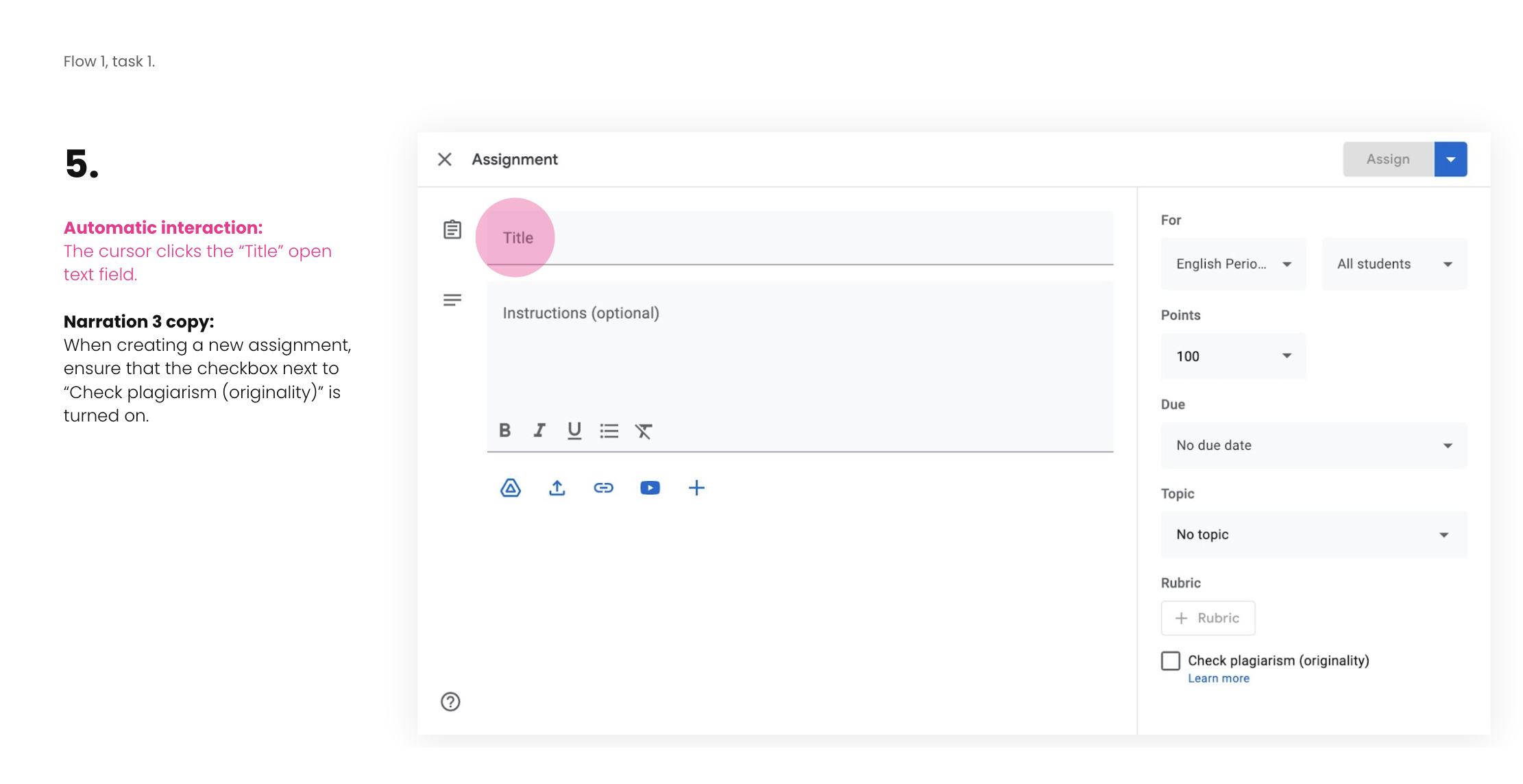
Once the user has created a new assignment, the automatic interactions continue as indicated by the magenta bubble.
We also see a new narration point introduced here ensuring the user was aware of the crucial step of checking the Check plagiarism checkbox when creating a new assignment.


And with that action, originality reports are officially turned on, reflected immediately in the new assignment displayed in the Classwork view.

Business Impact & What I Learned
Planning for constraints early saved us time and headaches.
By defining what each interaction and piece of copy needed to do upfront, I helped our internal team avoid rework and kept engineering on solid footing.Writing tighter copy made the demo clearer and easy to use.
Clear communication throughout the experience meant fewer questions from educators and a smoother onboarding experience overall.Storyboards became our alignment engine.
The boards I created helped designers, engineers, and stakeholders get on the same page quickly, speeding up decisions and reducing back-and-forth.Keeping the user’s perspective front and center paid off.
Every interaction was designed to show value fast, helping educators feel confident using key Workspace features.Designing intuitive interactions lowered onboarding friction.
Letting users learn by doing created a more engaging experience — and a more efficient way to demonstrate the product.Bringing order to ambiguity kept us moving forward.
Organizing complex flows early helped minimize late-stage changes and made it easier to scale the demo to other features.